
Excel & data management
Export a backup or move to another computer
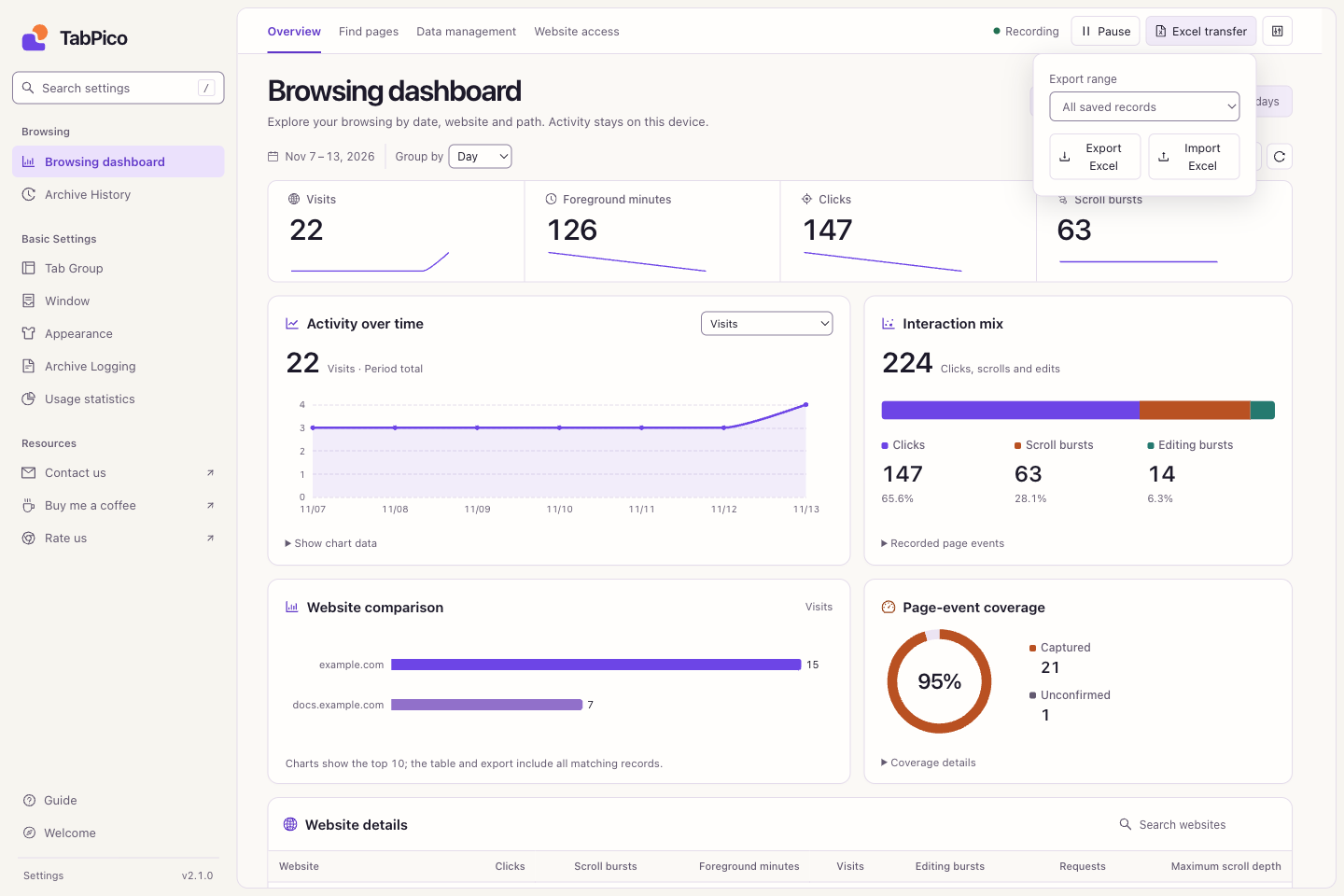
- On the source device, open Overview → Excel transfer. Choose All saved records and Export Excel. For a subset, filter the dashboard first and choose Current filters.
- On the destination device, choose Import Excel and select the original
.xlsxworkbook. - Review new, existing, completable, and expired records, then confirm the import. Check the date range or search for a familiar page afterward.
Import merges and deduplicates. Existing records stay; some missing fields can be completed. The workbook includes detailed activity, retained masked page events, and time/site/path summaries. Summary sheets include several time granularities; choose one before summing.
Worksheet names and headings follow the exporting extension's language. The destination can import that original workbook in any supported interface language. Keep the original detail sheets and identifiers for import; analysis can go in additional sheets.
There is no automatic device sync. The workbook does not transfer extension preferences, website grants, or archive history. It may contain titles and reopening URLs, so store it as browsing history.
Retention and capacity
Recording settings offers 30, 90, or 365 days for activity records, with 90 days by default and a 150,000-entry limit. Raw snapshots last up to seven days, with at most 500 segments and 64 MiB total event payload; capacity may remove older data sooner.
The destination applies its own retention limits. If the preview shows expired details, cancel, check retention, and select the workbook again if appropriate. Split very large exports by date. Workbooks are limited to 256 MiB on disk and 1 GiB unpacked.
Inspect and clean data
Open Data management to inspect record/snapshot counts, storage use, retained time range, and capacity limits.
| Goal | Action |
|---|---|
| Delete a date or website subset | Choose scoped cleanup, specify the exact host and/or local dates, preview, then confirm. Blank dates cover all retained time. |
| Keep summaries but remove raw events | Choose raw snapshots only in scoped cleanup. |
| Delete all browsing records and stop | Choose delete all browsing records and confirm. Export a backup first if needed. |
| Stop future collection only | Stop recording in Recording settings. Existing data stays until expiry or deletion. |
Scoped cleanup continues recording unless separately paused or stopped. Exclusions affect future collection only. For subdomain history, clean each exact host separately. Deleting all browsing records does not erase archives, tab preferences, language, appearance, or usage-statistics settings.