
Recording & website access
Start, pause, or stop
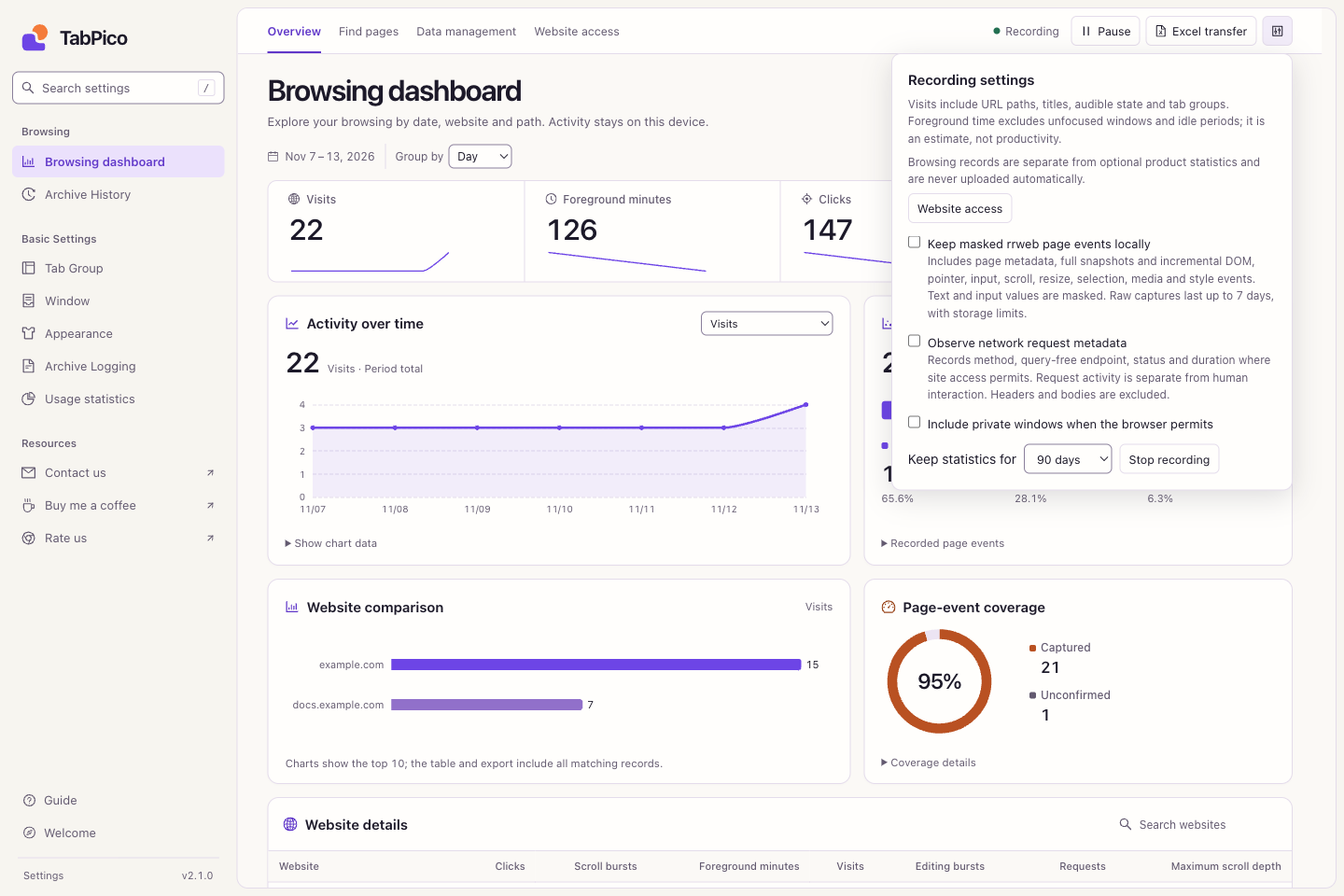
In Settings → Browsing dashboard → Overview, choose Start recording visits. This saves future visits, titles, websites, paths, and estimated foreground time locally. It does not backfill Chrome history. Basic visits do not require per-site access; page interactions do.
Choose Pause to stop collection temporarily, then Resume. The popup also offers 15-minute and one-hour pauses. To turn recording off, open Recording settings at the top right and stop recording. Existing records remain subject to retention.
Allow page interactions
- Current website: open the toolbar popup and allow the site, confirming Chrome's permission request.
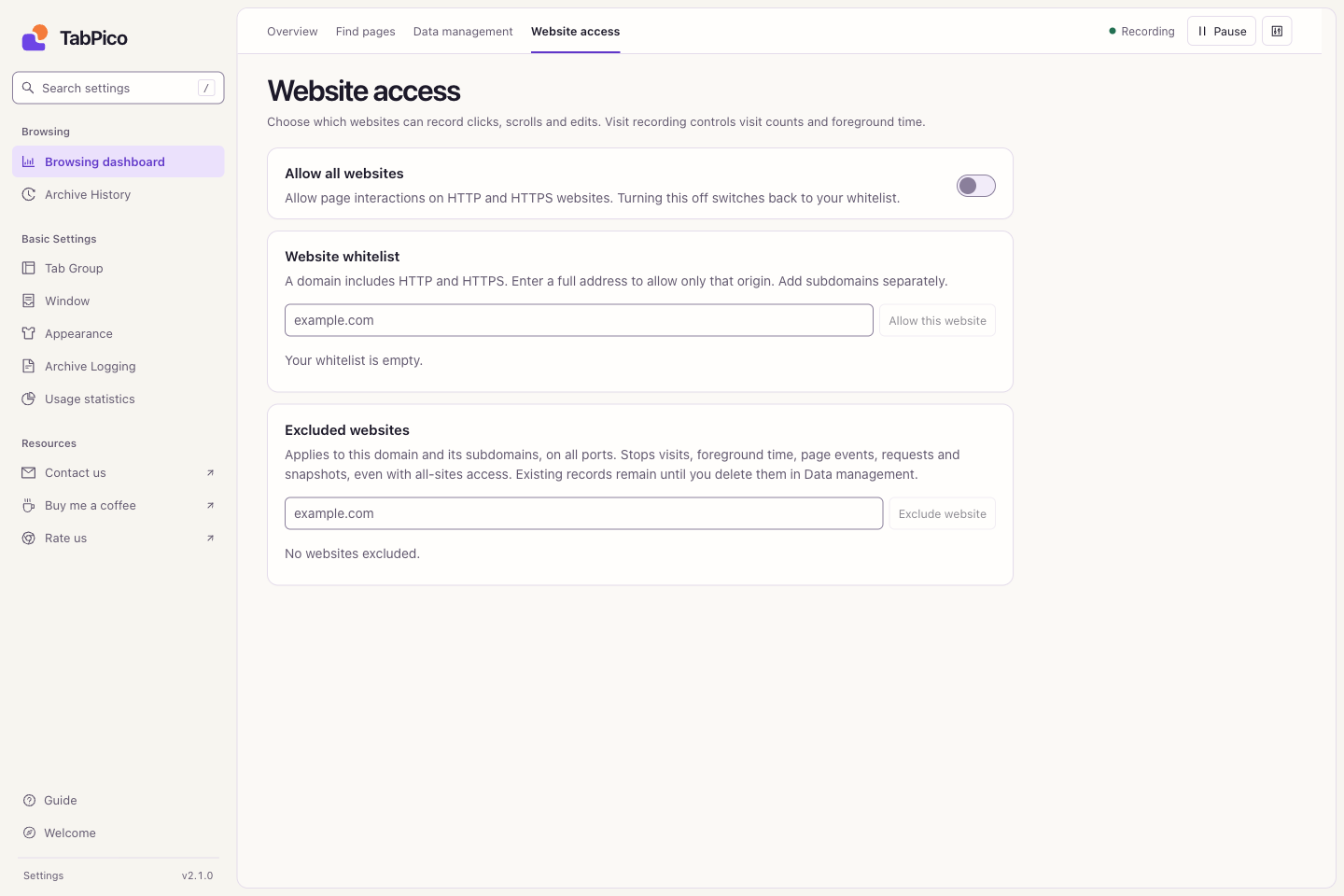
- Whitelist: in Website access, enter
example.comfor HTTP and HTTPS on that exact host. Add subdomains separately, or enter a full origin such ashttps://example.comto limit the grant. - All websites: turn on the all-sites switch and confirm browser access. Turning it off returns to your saved whitelist. Use Grant again if an individual permission needs restoring.
Not recorded means there is no collection evidence; 0 means a measured operation did not occur. New permission cannot recover earlier interactions. If necessary, check pause and exclusions, interact with an allowed page, then refresh the dashboard. Protected pages and unapproved embedded frames remain outside the collection scope.
Exclude a website
Choose Do not record this site in the popup, or add a domain under Website access → Excluded websites. Exclusions cover the hostname and subdomains on all ports, overriding all-sites access. Future visits, time, events, requests, and snapshots stop for that scope. Remove old data separately in Data management.
Optional request and page-event details
In Recording settings:
- Network request metadata: separately enable request observation and confirm browser permission. Eligible requests may include method, a query-free endpoint, status, and duration. Headers and request/response bodies are not stored. Automatic requests do not prove a click.
- Masked rrweb page events: optionally retain masked page structure and events locally. Ordinary click, scroll, and edit statistics do not require snapshots. Retained snapshots can be listed and exported from Overview; video replay is not provided.
- Private windows: also allow TabPico in incognito mode in Chrome's extension settings.
See the privacy policy for data boundaries.