
Tabs & archives
Set tab behavior
Open Settings → Tab Group.
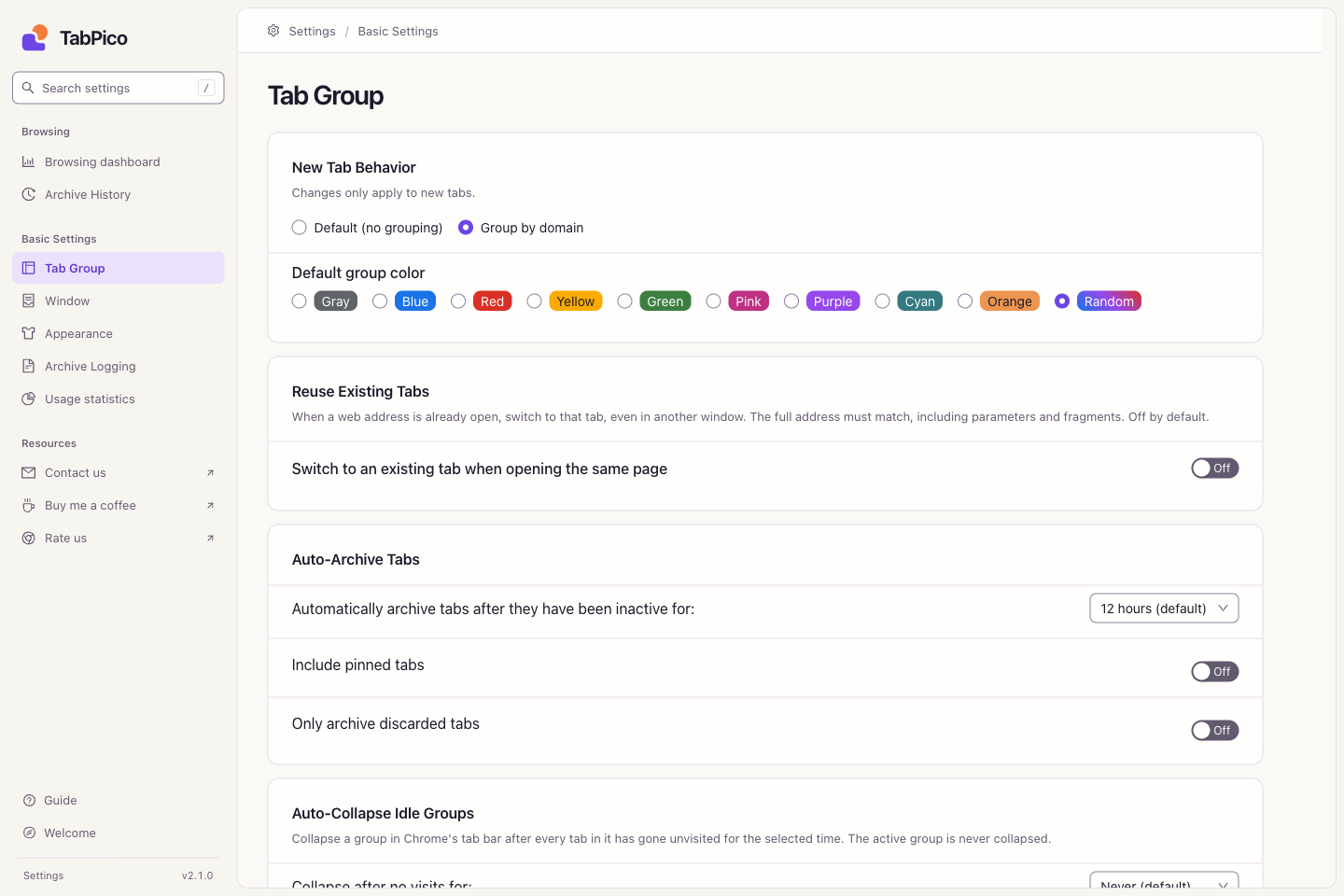
| Setting | How to use it |
|---|---|
| New tab action | Choose grouping by domain to organize subsequently opened tabs by website. Select a group color or random colors. |
| Reuse existing tab | Opt in to switching to an existing tab when the complete address, including query and fragment, matches. Works across windows; off by default. Intentional duplication is preserved. |
| Automatically collapse inactive groups | Set an inactivity duration. A group collapses once all its tabs qualify; its tabs stay open. |
| Auto Archive Tabs | Select an inactivity duration, or Never to disable. Eligible tabs are saved to archives and closed. You can restrict this to discarded tabs and separately include pinned tabs. |
Pinned tabs are excluded from automatic archiving by default. Collapse and archive are independent: collapsing keeps tabs in the window, while archiving closes them after saving a recoverable address. Neither preserves an unsaved form or a live page session.
Restore an archived page
Open Archive History from the popup or Settings.
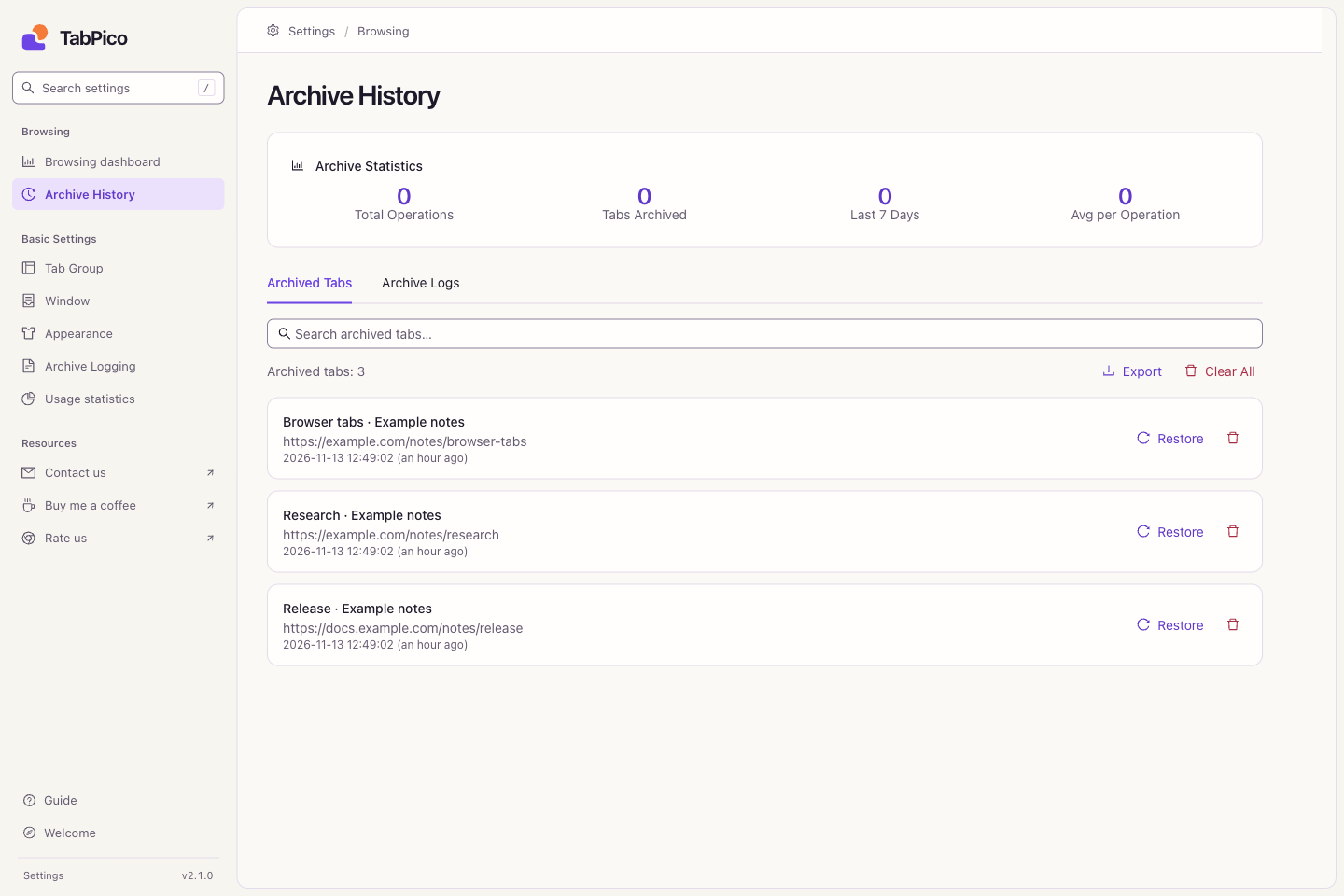
- In Archived Tabs, search by title or address and choose Restore for the page.
- For a particular archive run, open Archive Logs, choose Details, then restore individual pages or all pages in that run.
- Deleting an archive entry removes that recovery copy. It does not delete data on the website.
Retention and diagnostics
In Settings → Archive Logging, configure separate retention periods for archive history and logs, review storage and operation information, or enable debugging when troubleshooting. Old entries may expire according to those settings. Current-tab actions are described in Popup & action buttons.